
Basic Elements
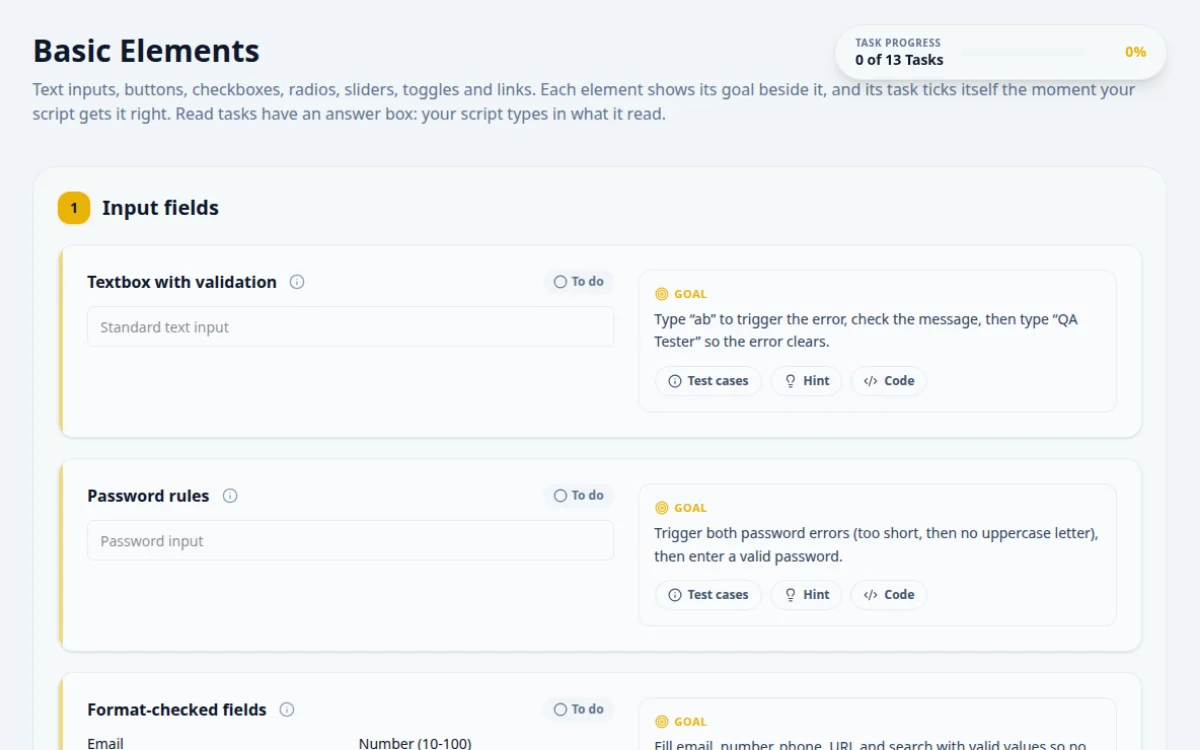
Text inputs, buttons, checkboxes, radios, sliders, toggles and links. Each element shows its goal beside it, and its task ticks itself the moment your script gets it right. Read tasks have an answer box: your script types in what it read.
1.Input fields
Type “ab” to trigger the error, check the message, then type “QA Tester” so the error clears.
- “ab” shows “Text must be at least 3 characters”
- A 3+ character value removes the error
- Typing only the valid value: the error path is never tested
- Appending to “ab” instead of clearing first
fill() replaces the value. sendKeys() and type() append, so clear the field before the second value.
const box = page.locator('#basic-text');
await box.fill('ab');
await expect(page.locator('#basic-text-error')).toHaveText('Text must be at least 3 characters');
await box.fill('QA Tester');
await expect(page.locator('#basic-text-error')).toHaveCount(0);Trigger both password errors (too short, then no uppercase letter), then enter a valid password.
- “abc” says at least 8 characters
- “abcdefgh” says it needs an uppercase letter
- “Abcdefgh” clears the error
- Asserting on the typed value: password inputs hide it on screen, not in the DOM
- Checking only the happy path
Each rule has its own message. Assert the exact text after each value.
const pw = page.locator('#basic-password');
const err = page.locator('#basic-password-error');
await pw.fill('abc');
await expect(err).toContainText('8 characters');
await pw.fill('abcdefgh');
await expect(err).toContainText('uppercase');
await pw.fill('Abcdefgh');
await expect(err).toHaveCount(0);Fill email, number, phone, URL and search with valid values so no field shows an error.
- All five hold a value
- No error message is on the page
- The number is between 10 and 100 (try the edges)
- A number like 101 or 9
- A search term with symbols such as “qa!”
Drive it from a data table: one row per field with a valid value. Then assert no element ending in -error exists.
const valid = { email: 'qa@example.com', number: '100', phone: '+1 555 123 4567', url: 'https://example.com', search: 'selenium tips' };
for (const [field, value] of Object.entries(valid)) await page.locator(`#basic-${field}`).fill(value);
await expect(page.locator('[id$="-error"]')).toHaveCount(0);There is an input here. You just can't see it.
Read the value of the hidden input and type it in the answer box.
- The answer matches the hidden value
- Waiting for it to be visible: it never will be
- Hardcoding the value: it changes on every visit
Hidden inputs have no visible text. Read the value attribute instead of the text.
const secret = await page.locator('#basic-hidden').inputValue();
await page.getByTestId('answer-basic-hidden').fill(secret);Assert the first input is read-only and the second is disabled, then type the read-only value in the answer box.
- The read-only check passes and the disabled check passes
- The answer matches the read-only value
- Treating read-only as disabled: a read-only field is still focusable and submitted with the form
- Typing into either field
Read-only is an attribute; disabled has its own state check in every tool.
await expect(page.locator('#basic-readonly')).not.toBeEditable();
await expect(page.locator('#basic-disabled')).toBeDisabled();
await page.getByTestId('answer-basic-readonly').fill(await page.locator('#basic-readonly').inputValue());Type a message of at least three lines.
- The textarea holds three or more lines
- Line breaks are real newlines
- Pressing Enter in a single-line input
- Typing a literal “\n” as two characters
Put newline characters inside the string you send. Every tool turns them into line breaks in a textarea.
await page.locator('#basic-textarea').fill('Line one\nLine two\nLine three');2.Buttons
Click the Normal, Submit, Reset and round (+) buttons, and assert the disabled button cannot be clicked.
- Each click shows “Successfully clicked: <name>”
- The disabled button reports disabled
- Forcing a click on the disabled button
- Finding the round button by its “+” text alone: prefer the id
Assert the confirmation message after each click. It disappears after three seconds.
for (const id of ['btn-normal', 'btn-submit', 'btn-reset', 'btn-fab']) {
  await page.locator(`#${id}`).click();
  await expect(page.locator('#button-message')).toBeVisible();
}
await expect(page.locator('#btn-disabled')).toBeDisabled();Click the loading button, wait until it is enabled again, then click it a second time.
- The button shows “Loading...” and is disabled after the first click
- The second click lands after it re-enables
- A fixed sleep: it either wastes time or is too short
- Clicking while it is still disabled
The button re-enables after about three seconds. Wait for its enabled state, not for a set time.
const btn = page.locator('#btn-loading');
await btn.click();
await expect(btn).toBeDisabled();
await expect(btn).toBeEnabled({ timeout: 5000 });
await btn.click();3.Checkboxes and radios
Check “Single Checkbox” and “Option B”. Leave “Option A” unchecked.
- Exactly those two are checked
- Running the script twice gives the same result
- click() on an already checked box unchecks it
- Checking Option A by mistake
Use a check() style call that only checks when the box is unchecked, or test isSelected() before clicking.
await page.locator('#chk-single').check();
await page.locator('#chk-multi-2').check();
await expect(page.locator('#chk-multi-1')).not.toBeChecked();Select “No” and assert that “Yes” is not selected.
- “No” is checked
- Only one radio in the group is checked
- Expecting uncheck() to work on a radio: only another option clears it
Radios in the same name group are exclusive. Select one and assert the other.
await page.locator('#radio-no').check();
await expect(page.locator('#radio-yes')).not.toBeChecked();4.Sliders and toggles
Set the volume slider to exactly 75.
- The number beside the slider reads 75
- Dragging by pixels: the result depends on the slider width
- Setting the value without firing an event, so the number never updates
Arrow keys move a range input one step at a time. Or set the value and dispatch an input event.
await page.locator('#slider-volume').fill('75');
await expect(page.locator('#slider-value-display')).toHaveText('75');Turn the switch on.
- The hidden checkbox behind the switch is checked
- Clicking the checkbox itself: it is visually hidden, so a real click is refused
- Forcing the click instead of clicking what a user sees
The real checkbox is hidden behind a styled label. Click the label text, then assert the checkbox.
await page.getByText('On/Off Switch', { exact: true }).click();
await expect(page.locator('#toggle-switch-1')).toBeChecked();5.Links
Assert the external link opens in a new tab, then click the internal link.
- The external link has target="_blank" and an https href
- Clicking the internal link moves to its anchor
- Clicking the external link without handling the new tab
- Asserting on link text only
Check link attributes without clicking. Clicking a target=_blank link opens a second window you would have to switch to.
await expect(page.locator('#link-external')).toHaveAttribute('target', '_blank');
await page.locator('#link-internal').click();
await expect(page).toHaveURL(/#basic-links-target$/);
About this Basic Elements page
Basic web element automation is the skill of finding form controls such as text inputs, buttons, checkboxes and radio buttons, then typing, clicking and asserting on them from a test script. You practice it on this free page by completing tasks that include positive and negative cases, then checking the result box. Solutions are given in Playwright, Selenium Java, Selenium Python and Cypress.
Frequently asked questions
How do I practice Selenium with inputs and buttons?
Open this page, pick a task, and write a script that locates the element, performs the action and asserts the outcome. A result box reports pass or fail for each task. No signup is needed, and the page runs in your browser.
How do you type into a text field in Playwright?
Use page.getByLabel('Name').fill('value') or page.locator(selector).fill('value'). The fill method clears the field and sets the text. Use pressSequentially if the app needs real keystroke events, for example for autocomplete.
How do you click a button in Selenium 4?
Find it with driver.find_element(By.ID, 'submit') in Python, or driver.findElement(By.id("submit")) in Java, then call click(). Use an explicit WebDriverWait with element_to_be_clickable first if the button may be disabled or still rendering.
What are negative test cases for a form?
Negative cases check that invalid input is rejected: empty required fields, wrong formats, text beyond a length limit, or a disabled button that must not submit. Each task here includes both positive and negative cases to automate.
Which tool is best for beginners to practice with?
Any of the four works here. Playwright and Cypress have auto-waiting, which hides timing problems, while Selenium shows them early. The page includes reference solutions in all four, so you can compare approaches.
Free developer tools on Randomly.online
QA Playground is part of Randomly.online. These tools help while you write and debug tests: