
Locator Traps
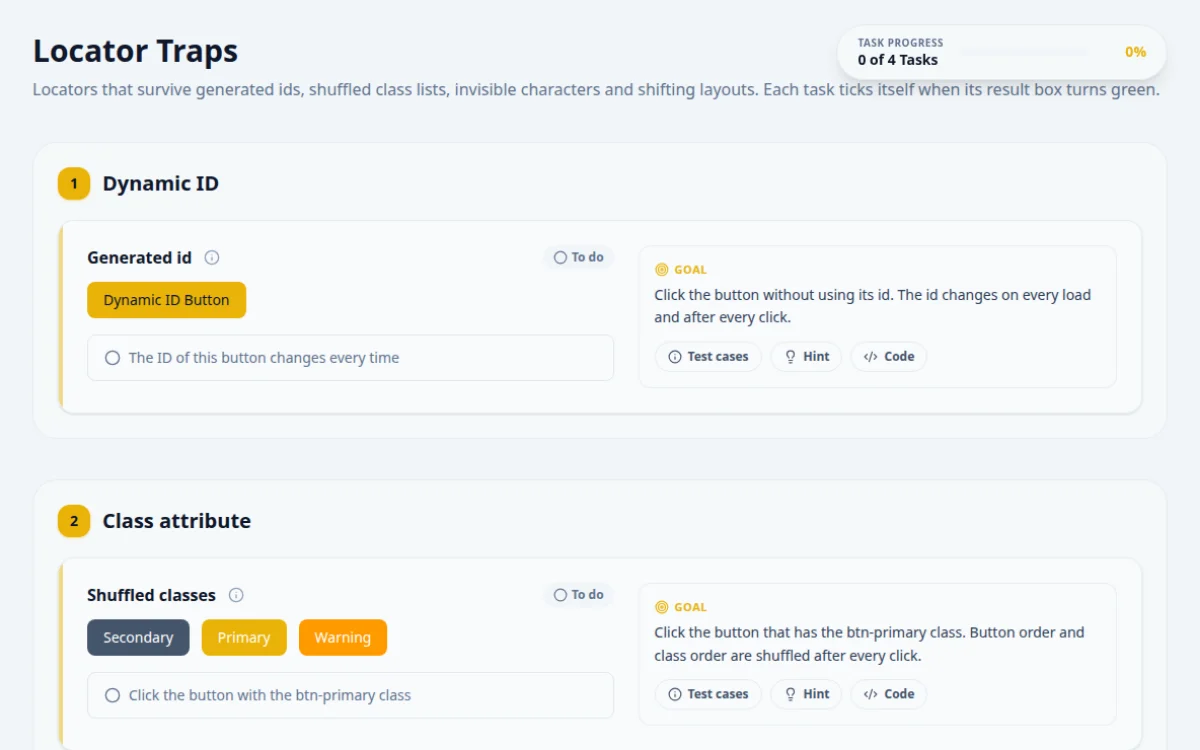
Locators that survive generated ids, shuffled class lists, invisible characters and shifting layouts. Each task ticks itself when its result box turns green.
1.Dynamic ID
Click the button without using its id. The id changes on every load and after every click.
- Locating by text or by the dynamic-id-btn class clicks it
- A locator copied from DevTools, such as #btn-x7k2pq: it breaks on the next load
Pick an attribute that stays put: the visible text, the role, or the dynamic-id-btn class.
await page.getByRole('button', { name: 'Dynamic ID Button' }).click();2.Class attribute
Click the button that has the btn-primary class. Button order and class order are shuffled after every click.
- A class selector such as .btn-primary picks the right button every time
- [class="btn btn-primary btn-test"]: the order of classes changes
- Picking the first button: the order changes too
CSS class selectors ignore class order. XPath needs contains(concat(' ', @class, ' '), ' btn-primary ').
await page.locator('#class-trap .btn-primary').click();3.Non-breaking space
Click the “Click Me” button. The space in its label is a non-breaking space (U+00A0).
- normalize-space(), contains() or a \s+ regex finds it
- XPath text()='Click Me' with a normal space finds nothing
A non-breaking space is not the same character as a space. Match around it, or normalise it away.
await page.locator('#nbsp-section button', { hasText: /Click\s+Me/ }).click();4.Shifting content
Click “Shift layout” to reshuffle the menu and its offset, then click Gallery.
- Locating by name clicks Gallery wherever it is
- nth-child or index locators hit another item
- Clicking by coordinates
Scope to the menu and find the button by its name.
await page.locator('#shift-button').click();
await page.locator('#shifting-menu').getByRole('button', { name: 'Gallery' }).click();
5. Solutions
Try the challenges yourself first. Reference solutions are hidden until you ask for them.
About this Locator Traps page
A locator trap is markup that makes a fragile selector fail: IDs regenerated on every load, classes in changing order, extra whitespace in attribute values, or elements that move when the layout shifts. Stable locators use role, label, visible text, data-testid or partial matches instead. You practice by finding each target with a selector that still works after a reload.
Frequently asked questions
How do I locate an element with a dynamic ID in Selenium?
Skip the full ID. Use a partial match such as By.cssSelector("[id^='submit-']") or XPath contains(@id, 'submit'), or locate by text, label or a data attribute. Best of all, ask developers to add a stable data-testid attribute.
What is the best locator strategy in Playwright?
Playwright recommends user-facing locators first: getByRole, getByLabel, getByText and getByTestId. They match what a user sees and survive markup changes. Fall back to CSS or XPath only when no accessible role or label exists.
Why does a class locator break when class order changes?
An XPath like @class='btn primary' compares the whole string, so order or extra spaces break it. Use a CSS class selector such as .btn.primary, or XPath contains(concat(' ', normalize-space(@class), ' '), ' primary '), which ignores order and spacing.
How do I handle hidden elements and extra spaces in text?
Check visibility before interacting and match text with normalize-space() in XPath, or Playwright getByText, which normalizes whitespace by default. Filter out hidden duplicates with :visible in Playwright or by checking isDisplayed() in Selenium.
How can I make locators less flaky when the layout shifts?
Do not rely on position, such as nth-child or absolute XPath. Anchor on stable attributes or on a nearby label, then navigate relative to it. Playwright locator chaining and filter() make this readable.
Free developer tools on Randomly.online
QA Playground is part of Randomly.online. These tools help while you write and debug tests: